
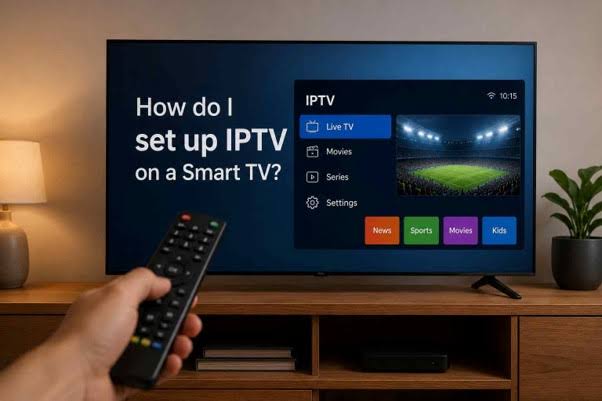
How to Set Up IPTV
on Smart TV
Learning How to Set Up IPTV on Smart TV can be simple when you have the correct subscription details, a compatible IPTV application, and a stable internet connection.
This guide explains the setup process step by step, from checking your Smart TV and installing a compatible application to entering your subscription information and loading available channels.
Whether you want to watch live television, entertainment, movies, or video-on-demand content, the basic setup process follows the same general steps.
- How to Set Up IPTV on Smart TV
- What you need before starting
- How to choose a compatible IPTV application
- How to install an IPTV app
- How to enter your subscription details
- How to load and test IPTV channels
- How to solve common IPTV problems
- How to improve streaming performance
How to Set Up IPTV on Smart TV
The process of setting up IPTV on a Smart TV usually involves several straightforward steps. You first need to connect your television to the internet, install a compatible IPTV application, and enter the subscription information supplied by your provider.
What You Need Before Setting Up IPTV on Smart TV
Check Your Smart TV
Start by checking the operating system and application store available on your Smart TV. Different television manufacturers use different platforms, so applications can vary between models.
- Connect your TV to a stable Wi-Fi or Ethernet connection.
- Open the television's application store.
- Check that you can install compatible streaming applications.
- Make sure the TV software is reasonably up to date.
Choose a Compatible IPTV App
An IPTV application acts as the player that displays the content available through your subscription. The applications available depend on your Smart TV platform and region.
Before installing an application, check its compatibility with your television and review the information provided by its developer.
Whenever possible, use applications from the official application store available on your television.
Install the IPTV App on Your Smart TV
Open your Smart TV's application store and search for the compatible IPTV application you have selected.
- Open the TV application store.
- Search for the selected IPTV application.
- Review the application information.
- Select Install or Add.
- Wait for the installation to complete.
- Open the application.
Get Your IPTV Subscription Details
Your IPTV provider normally supplies the information required to connect the application to your subscription. Depending on the service, this may include a username, password, server address, playlist URL, or activation code.
Never publish your IPTV username, password, playlist URL, activation code, or other private account information online.
Enter Your IPTV Subscription Details on Smart TV
Open the IPTV application and select the login or playlist option provided by the application. Enter the subscription information exactly as supplied by your provider.
- Enter your username if required.
- Enter your password if required.
- Enter the server or playlist information.
- Check spelling and spaces carefully.
- Save the configuration.
Load IPTV Channels on Your Smart TV
After your subscription information is accepted, the IPTV application may begin loading your available channels, categories, or video-on-demand library.
Loading time can vary depending on the application, playlist size, server response, and your internet connection.
You can also explore the Elite IPTV 8K channels list to discover the European content presented on the website.
Test IPTV on Your Smart TV
Once your channels have loaded, test several different categories and content types to make sure everything is working correctly.
- Open a live TV channel.
- Test several channels.
- Check picture quality.
- Test video-on-demand content if available.
- Check audio and video synchronization.
How to Set Up IPTV on Smart TV for European Content
Smart TV users interested in European television content can organize their IPTV experience around the countries and categories available through their subscription.
Users looking for French television content can also visit the IPTV France page for additional information.
The exact channels and content available depend on the IPTV provider, subscription, region, and applicable content rights.
What Internet Connection Do You Need for IPTV?
IPTV performance depends heavily on your internet connection. A stable connection is important for maintaining smooth playback.
Tips for a More Stable Connection
- Use Ethernet when a wired connection is practical.
- Keep your TV within a reasonable range of your Wi-Fi router.
- Reduce heavy downloads on the same network.
- Restart your router if the connection becomes unstable.
- Test your internet connection if buffering happens frequently.
Common Problems When Setting Up IPTV on Smart TV
IPTV App Will Not Open
Restart the application and Smart TV. Check for available application updates and verify the internet connection.
Login Information Does Not Work
Recheck the username, password, server address, or playlist information and make sure there are no typing errors.
Channels Keep Buffering
Check your network connection, reduce other network traffic, and consider using Ethernet if available.
Channels Do Not Load
Check whether your subscription is active and verify the connection information supplied by your provider.
Tips for Better IPTV Streaming on Smart TV
- Keep your Smart TV software updated.
- Keep your IPTV application updated.
- Use a stable internet connection.
- Avoid unnecessary network traffic.
- Restart your TV and router when temporary problems occur.
- Keep your subscription information secure.
Smart TV and Android TV Help
If you use an Android TV device, the official Android TV Help Center provides additional information about Android TV features, applications, settings, and troubleshooting.
Is IPTV Legal?
IPTV is a technology used to deliver television and video content over an internet connection. The legality of a particular IPTV service depends on the content being provided, the rights held by the provider, and the laws applicable in the user's country.
Before subscribing, users should verify that the service has the appropriate rights or licenses for the content it distributes.
A VPN does not automatically make unauthorized access to copyrighted content lawful. Always use IPTV services and content in accordance with applicable laws and licensing requirements.
FAQ About How to Set Up IPTV on Smart TV
How to Set Up IPTV on Smart TV for the first time?
Connect your Smart TV to the internet, install a compatible IPTV application, enter your subscription details, and then load and test the available content.
Do I need an IPTV app on my Smart TV?
In most cases, an IPTV service requires a compatible player or application to display subscription content. Application availability depends on your television platform.
Why is my IPTV buffering on Smart TV?
Buffering can be related to Wi-Fi quality, network congestion, internet instability, application problems, or issues with the IPTV service.
Can I use IPTV on different Smart TV brands?
IPTV can be used on many Smart TV platforms, but application availability and installation methods vary between manufacturers and operating systems.
How can I improve IPTV quality on Smart TV?
Use a stable internet connection, consider Ethernet when possible, reduce network congestion, and use a compatible IPTV application.
Smart TV IPTV Setup Checklist
Final Tips for Setting Up IPTV on Smart TV
Setting up IPTV on a Smart TV does not have to be complicated. The main steps are checking your television, choosing a compatible application, entering the correct subscription information, loading the available content, and testing the connection.
If you experience problems, start with the basics: check your internet connection, verify your subscription details, restart the application, and make sure your Smart TV software is up to date.
Ready to Explore IPTV?
Explore the available European IPTV content and learn more about the service and subscription options.
Explore Channels